
Teacher’s Toolbox
Online music lessons fail for one reason far more often than any other: the software was built for meetings.
Meeting software is optimised for one person talking. It compresses the top end, hears a sustained note as background noise and gates it out, and processes everything else on the way through. For a conversation none of that matters. For a lesson all of it does. A decaying string vanishes, a quiet phrase never arrives, and the student quietly concludes that either they are bad at this or you are.
What follows is the working version: room, audio, cameras by instrument, how to keep the two of you in time, a lesson template that fits in half an hour, and the short message to send students so the first lesson starts on time instead of starting with troubleshooting.
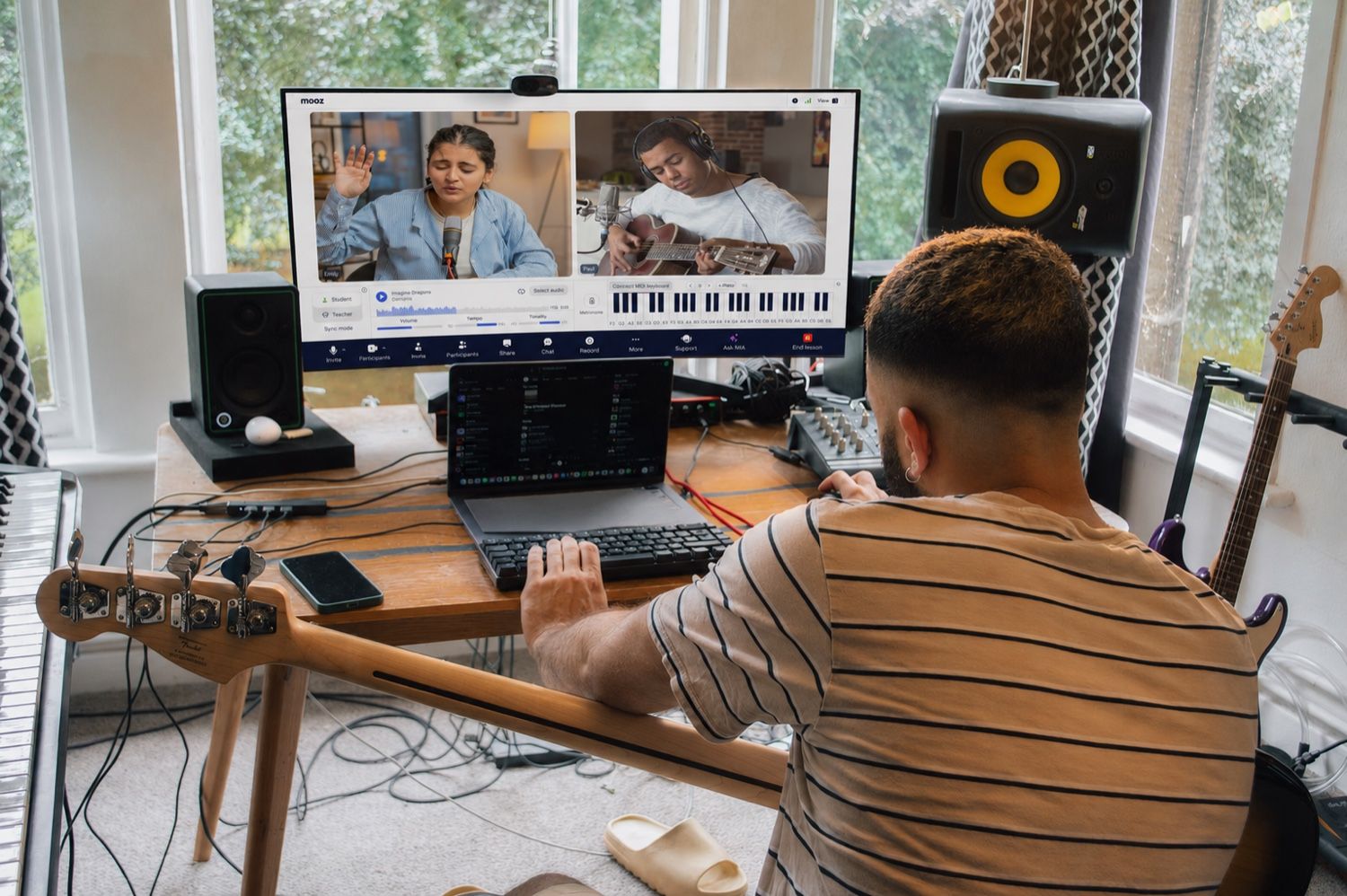
Two feeds, Sync Mode, the player, a MIDI keyboard and a metronome — all in one window
🎹🔊 Sync Mode puts you and your student on the same click, so you hear how the playing actually lines up — and the whole lesson stays in one window. Get MOOZ for Mac, Windows, Linux, iOS or Android → — free for your students, always.
Why online lessons lose students in the first month
Three things go wrong, and they usually go wrong inside four weeks.
Audio. Noise suppression treats a sustained note as noise and chops the tail off it. The student never hears their own tone, so they cannot work on it and you cannot demonstrate it.
No shared reference. On a meeting app there's nothing for you both to play against, so teachers try to accompany live and end up sounding sloppy. Students almost always blame themselves for it. There's a fuller breakdown of what it takes to stay together in synchronization in online music lessons.
Visibility. One laptop camera shows a face and hides the hands. Guitar, piano, strings and winds are hand instruments. If the student can't see the fingering, you're not giving a lesson, you're giving a talk.
1. Sort the room and the network before you buy anything
No microphone fixes a bouncy room, and no camera fixes Wi-Fi dropping out mid-phrase. The floor:
- Ethernet to the teaching machine. Wi-Fi is the single most common cause of a lesson falling over halfway through.
- Something soft behind and beside the instrument. Bare walls smear the decay. A curtain, a bookshelf or an open wardrobe does the job for nothing.
- Light in front of you, at face height. A window behind your head turns you into a silhouette and the student spends the lesson watching an outline.
- Phone on Do Not Disturb. One incoming call still takes down the session on plenty of consumer machines.
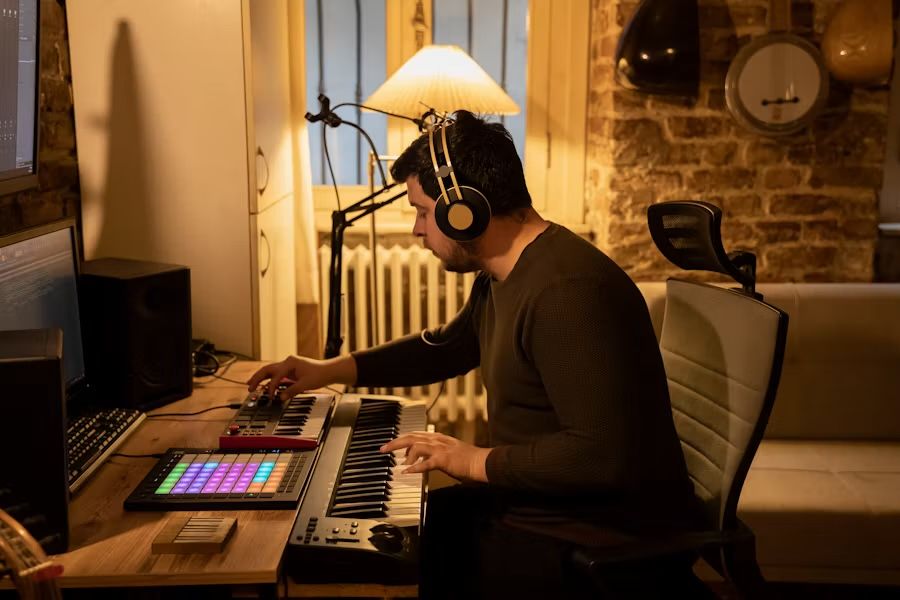
Wired connection, soft surfaces, light in front of you. Gear does not fix a room
2. Fix the audio before you buy another camera
A built-in laptop microphone applies automatic gain and noise gating whether you want it to or not. Quiet dynamics disappear, peaks clip, and everything in between arrives flattened. For a music lesson that's fatal, and it's the first thing to fix, ahead of a better webcam or a second screen.
A USB condenser such as the Logitech Yeti (about $110) or Audio-Technica AT2020USB-X (about $170), placed 20 to 30 cm off-axis from the sound source, is the highest-return purchase in the whole setup. Set the gain so the loudest phrase you'd realistically play peaks somewhere around −12 to −6 dBFS, and never let the meter touch 0.
Then stop feeding that signal into a meeting app, because it will reprocess it anyway. Generic platforms re-apply suppression on top of whatever you plugged in, which is why teachers buy a good microphone and hear almost no difference. A platform built for music passes the signal through at full frequency range and leaves it alone. We put the two side by side in Zoom vs MOOZ if you want the specifics.
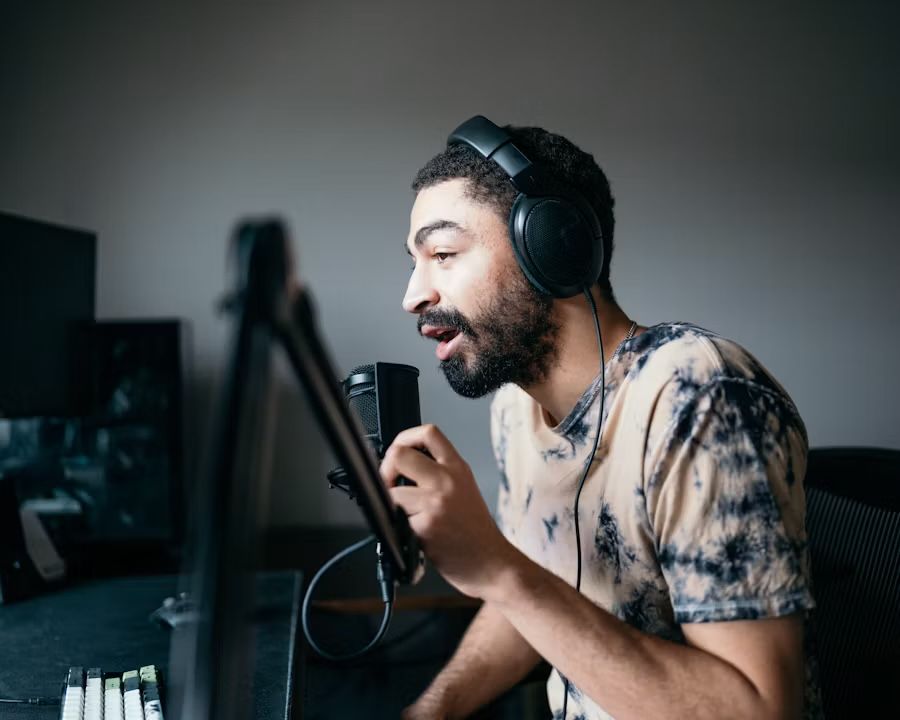
A USB condenser off-axis from the source is the highest-return purchase in the whole setup
3. Two cameras, chosen by instrument
One face camera is not a music lesson. Run two feeds: face for talking, hands for technique. MOOZ carries up to five at once, so you set them up once and never switch mid-phrase.
Piano. Face camera at eye level. Second camera overhead or angled 45° down the keybed, so both hands and the fallboard are in frame.
Guitar and ukulele. Camera on the strumming-hand side at chest height, framing the whole fretboard and both hands. A third feed on the picking hand pays for itself the moment you start teaching fingerstyle.
Voice. Face camera plus a side camera on ribs, jaw and larynx. Breath support and a rising larynx are invisible from the front.
Strings and winds. A close-up on the left hand or the embouchure, plus a full-body shot for posture. A bow arm and a left-hand frame will not share one tight crop.
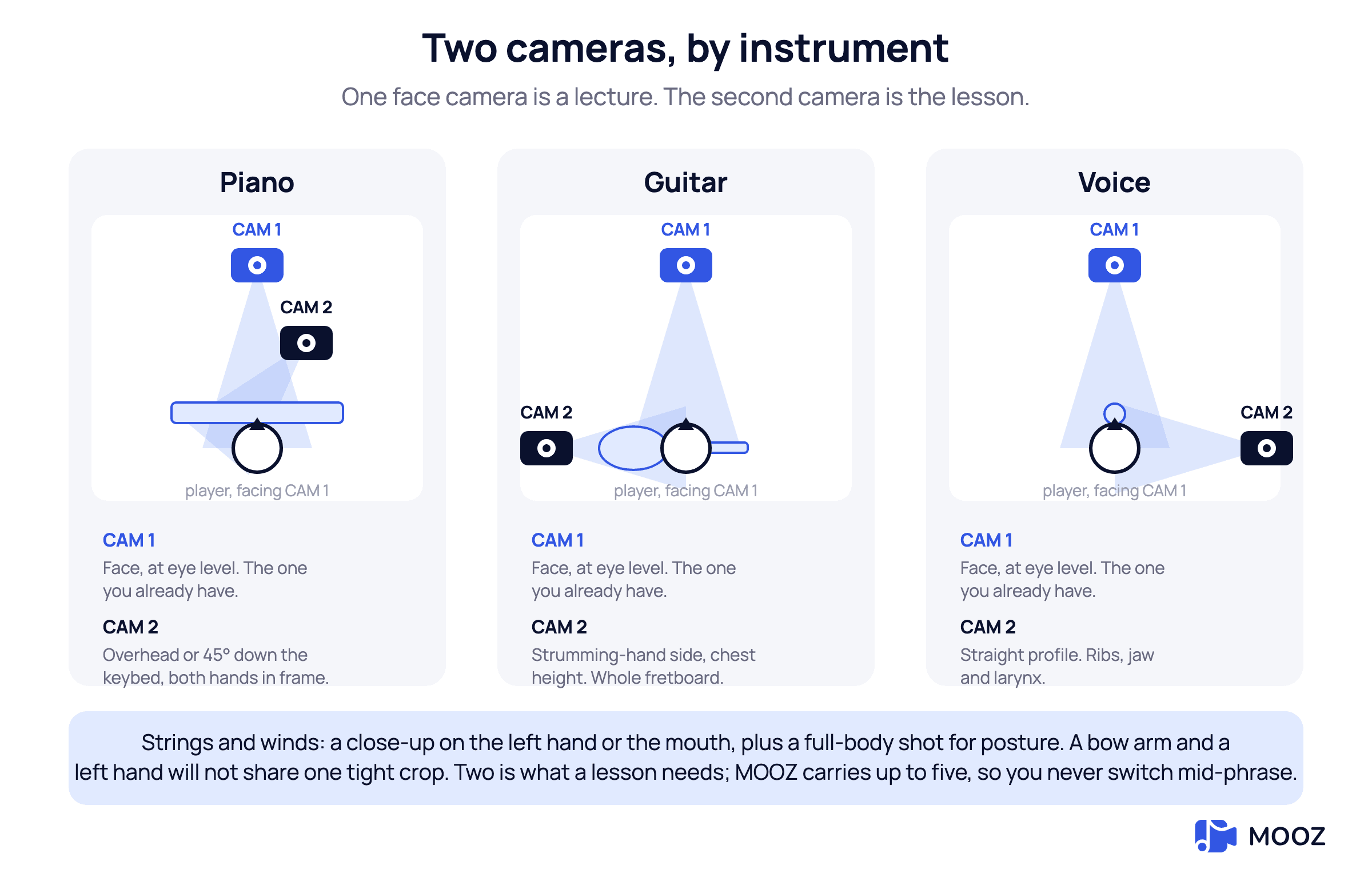
One face camera is a lecture. The second camera is the lesson
A phone on a gooseneck clamp is a perfectly good second camera. This isn't a gear problem, it's a habit problem. Before and after on a guitar class shows what the second angle actually changes.
4. Put everyone on the same click
Playing together at a distance works when you both have one reference to play against. That's what Sync Mode is for: the built-in metronome, the audio player or the virtual piano runs for the two of you at once, and your student performs against exactly the click you're hearing.
MIDI does the same job for anything you play on a keyboard. A MIDI instrument sends note data rather than an audio stream, so nothing is compressed or gated on the way through, and what you demonstrate arrives as the notes you actually played.
That combination is what makes scales, songs and rhythm drills work in time rather than roughly in time. The teaching pattern that gets the most out of it is demonstrate, pause, student plays it back, with the reference running underneath both halves — you hear precisely where they drift, and so do they.
5. Keep the tools inside the room
Every app you open outside the classroom is a dropout risk and a tax on lesson time, spent alt-tabbing, re-sharing screens and asking whether they can hear it now. Keep these in one place:
- A metronome with a shared tempo the student can actually hear
- An audio player with tempo and pitch control for backing tracks
- A virtual piano or MIDI, so you can demonstrate without leaving the call
- Sheet music upload with live annotation
- One-tap recording, so the student replays the exact correction rather than their memory of it
6. A 30-minute lesson template
This is a standard private lesson, and the times are a starting point rather than a rule. The one thing not to move is the order.
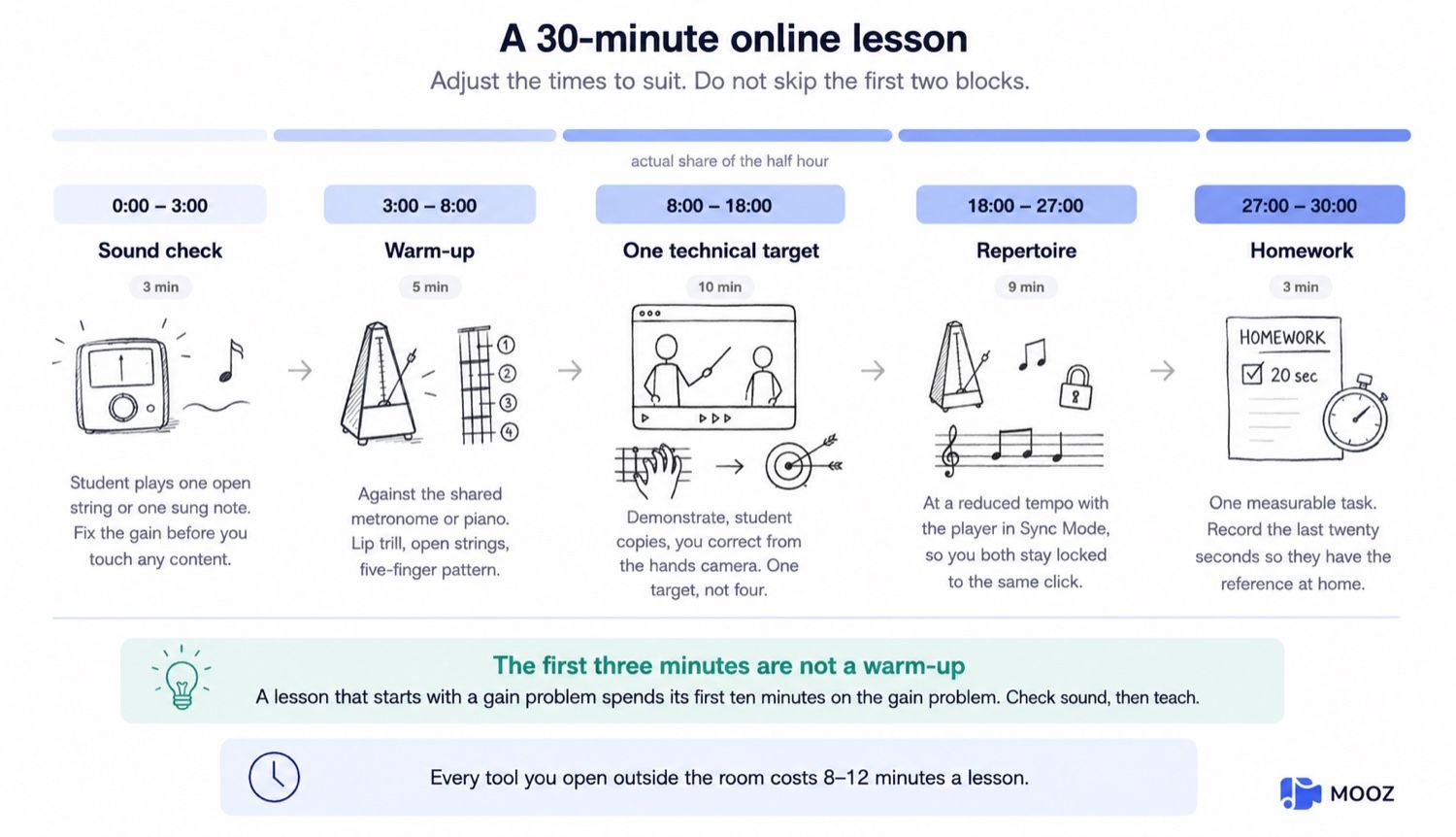
A 30-minute online lesson, block by block
🎯🎵 A template only works if the room already has the metronome, the player and the recorder in it. Download MOOZ and run the block once on your own → before a student is watching.
7. Retention is a product problem, not a personality problem
Students quit online lessons for two reasons: they can't hear themselves improving, and the call itself is friction. Clean audio, a visible hands feed and a short recording after every session remove both. More on the motivation half of this in how to keep students motivated in online music lessons.
The lesson tools help here too: the metronome, player and annotation are already in the room, so nobody leaves the call to find them.
There's a pricing detail that removes the most common objection at the first lesson, too. Students never pay. The teacher subscription covers the room, and a student account is free forever, so nobody has to ask a parent to buy anything before lesson two.
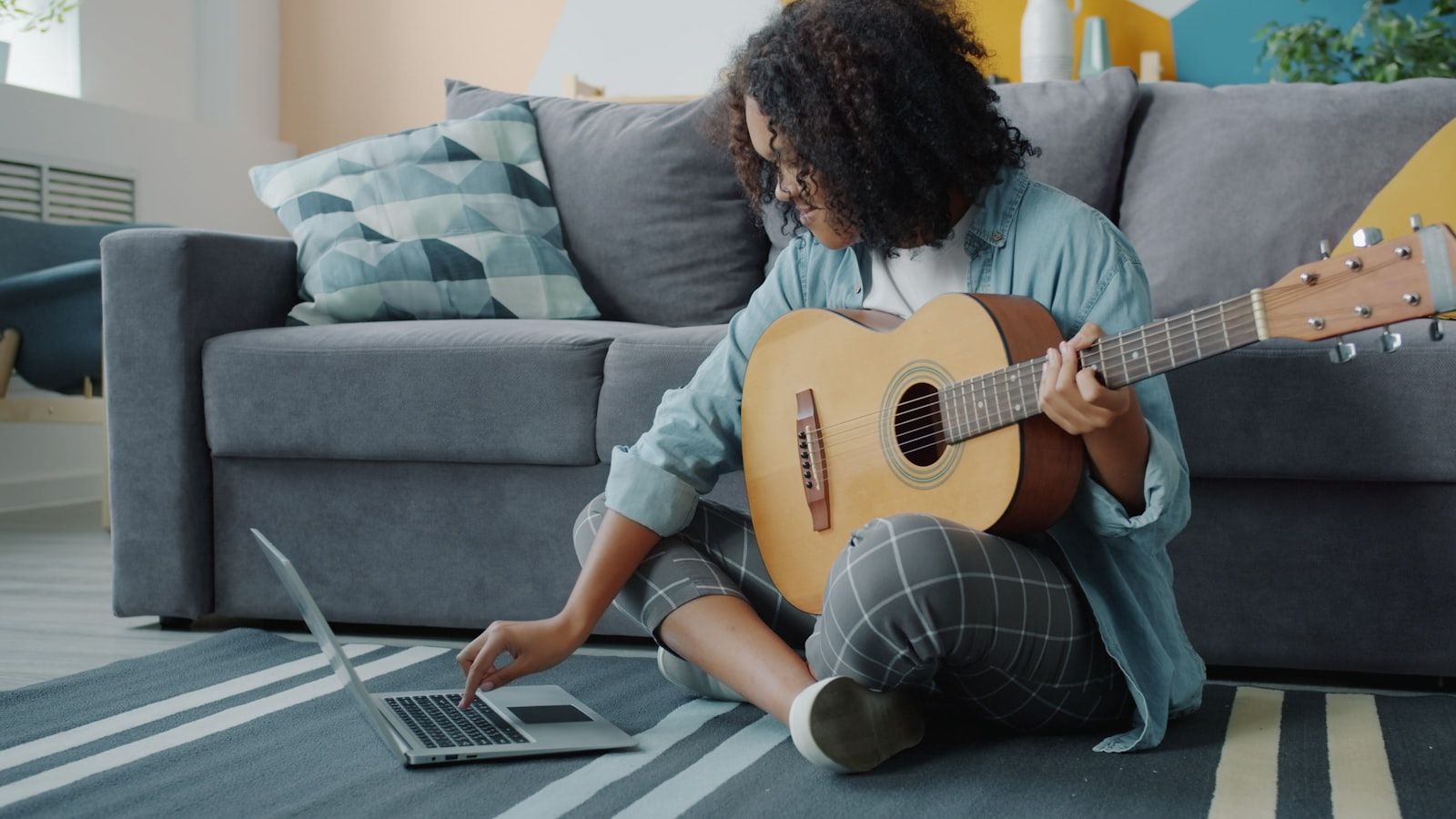
The setup most students already have: an instrument, a laptop and a bit of floor
What to send your students before lesson one
This is the part worth copying and forwarding. Students join through a link you share, but they do need the app installed, so the five minutes they spend before the first lesson is five minutes you don't spend on it during.
Send them this:
- Download the app from mooz.pro/download. It runs on Mac, Windows, Linux, iPhone, iPad and Android, so whatever they already own is covered.
- Create a free account. Free forever for students. No card, nothing to buy.
- Open the link you sent, five minutes early the first time.
- Wear headphones. It's the single biggest improvement to what you hear from their end, and it costs nothing.
- Put the instrument in the light and the camera where the hands are. A phone propped against a stack of books is genuinely fine.
Send it once, as a message, before the first lesson. Every item on that list is something you'd otherwise be troubleshooting live while the clock runs.
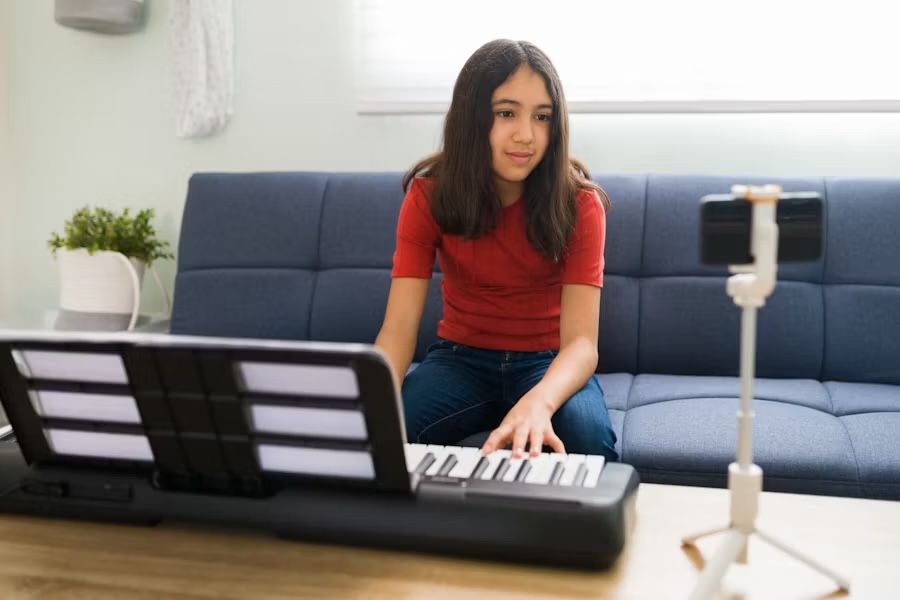
A phone on a cheap tripod is the whole of most students' second camera
Getting yourself set up
- Download the desktop app from mooz.pro/download. Desktop carries the full toolset, so set up there even if you sometimes teach from a tablet.
- Subscribe. In the US it's $49.99 for one month, $99.99 for three months or $299.99 for a year (the price depends on your country), and every plan includes the same features. There's a 14-day money-back guarantee if it turns out not to suit you.
- Test Sync Mode against a backing track, with a second camera on your instrument, before you use either with a student. Ten minutes on your own beats discovering it live.
- List yourself in the teacher directory if you want inbound students. It comes with the subscription, and you fill in instrument, language and availability so people can filter down to you.
- Send your existing students the join link and the five-item list above.
- Teach the template once, record it, and send the file home as the homework reference.
FAQ: teaching music online
Can I teach music online without expensive gear?
Yes, with a floor. Wired internet, a USB condenser and a second camera — a phone counts — cover most instruments. A 4K webcam feeding into a laptop microphone does not.
How do a teacher and student stay in time?
Give them both one thing to play against. Sync Mode runs the metronome, the audio player or the virtual piano for the two of you at once, and MIDI carries what you play on a keyboard as note data rather than audio. Demonstrate, pause, student plays it back with the reference still running — that's the pattern that holds time.
What's the best platform to teach music online?
Something designed for music rather than for stand-ups. Meeting apps hide tone and process the audio no matter what microphone you attach. What you're looking for is full-range sound, multiple camera feeds and the lesson tools in the same window.
How do I turn a first lesson into a regular student?
Send the recording of the last five minutes and one written target for the week. Students stay when they can hear the difference between lesson one and lesson two, and the recording is the proof.
Do students have to buy anything to take a lesson?
No. Student accounts are free, and the teacher subscription covers the room. They do need to install the app to join a lesson from the link you send, which takes a couple of minutes and costs nothing.
Next step
Plug in the Ethernet. Put a USB microphone 25 cm off-axis from the instrument. Add a second camera on the hands. Run Sync Mode against a metronome for three minutes so you know what it feels like before a student is watching.
Then teach one lesson on the 30-minute template, record it, and send the file home. That recording is the thing that books the second lesson.
Sources
Checked on 6 November 2026.
| Source | What it supports |
|---|---|
| Logitech: Yeti | About $110 |
| Guitar Center: Audio-Technica AT2020USB-X | About $170 |
Related Articles
Music Teachers and Time Management: Burnout Cancelled
Drowning in lesson plans and admin? This guide helps music teachers master their schedule.
Music Teacher Marketing Guide: From Job Search to Fully-Booked Studio
Ultimate guide with Instagram/TikTok strategies, copy-paste DM templates, and music teaching tools to find students directly.
Your Student Wants to Quit Music: What to Do
A music teacher's survival guide: learn how to deal with student dropouts.