
Teacher’s Toolbox
Zoom is the app most music teachers already have open, and it's built for speech. Noise removal, automatic gain and a narrow codec exist so that a board meeting stays easy to follow. On a violin, a voice or a piano, the same processing cuts off the end of a note, pumps up the quiet passages and hides exactly what you're trying to teach.
This guide gives you the exact settings, in order, and then the point where settings stop helping.
The short version: select Original sound for musicians, turn off automatic microphone volume, put both of you on headphones, and check the mode inside the meeting, not just in Settings. If the tone still sounds gated after that, you've hit the limit of the product rather than missed a checkbox. When to switch is covered after the setup.
🎻🎧 Tired of fighting a speech app for every sustained note? MOOZ passes full-range audio, runs up to five cameras and keeps you both on one click with Sync Mode. Get MOOZ for Mac, Windows, Linux, iOS or Android → Your students join free, always.
Before you touch a Zoom setting
Settings can't fix a laptop mic with a speaker in the same room. Sort this out first, on your side and on the student's.
- Headphones on both ends. Speakers plus a live mic create a feedback loop, and echo cancellation then has to crush the very signal you wanted to keep.
- A USB mic or audio interface, not the laptop's built-in mic. Place it 20–30 cm from the instrument, slightly off to the side. Laptop mics sit right next to the fan and the keyboard.
- Ethernet on the teaching computer. High-fidelity music mode raises the bitrate, and Wi-Fi is where it drops out.
- Close other audio apps. A DAW still holding the interface will give Zoom either silence or a crushed signal.
- The Zoom desktop app, up to date, on Windows or Mac. High-fidelity music mode is a desktop feature. The browser version only offers noise suppression, and the Linux client only lets you adjust background noise suppression.
Best Zoom settings for music lessons
On desktop, click your profile picture, then Settings → Audio. The names below are the labels in the English version of the app.
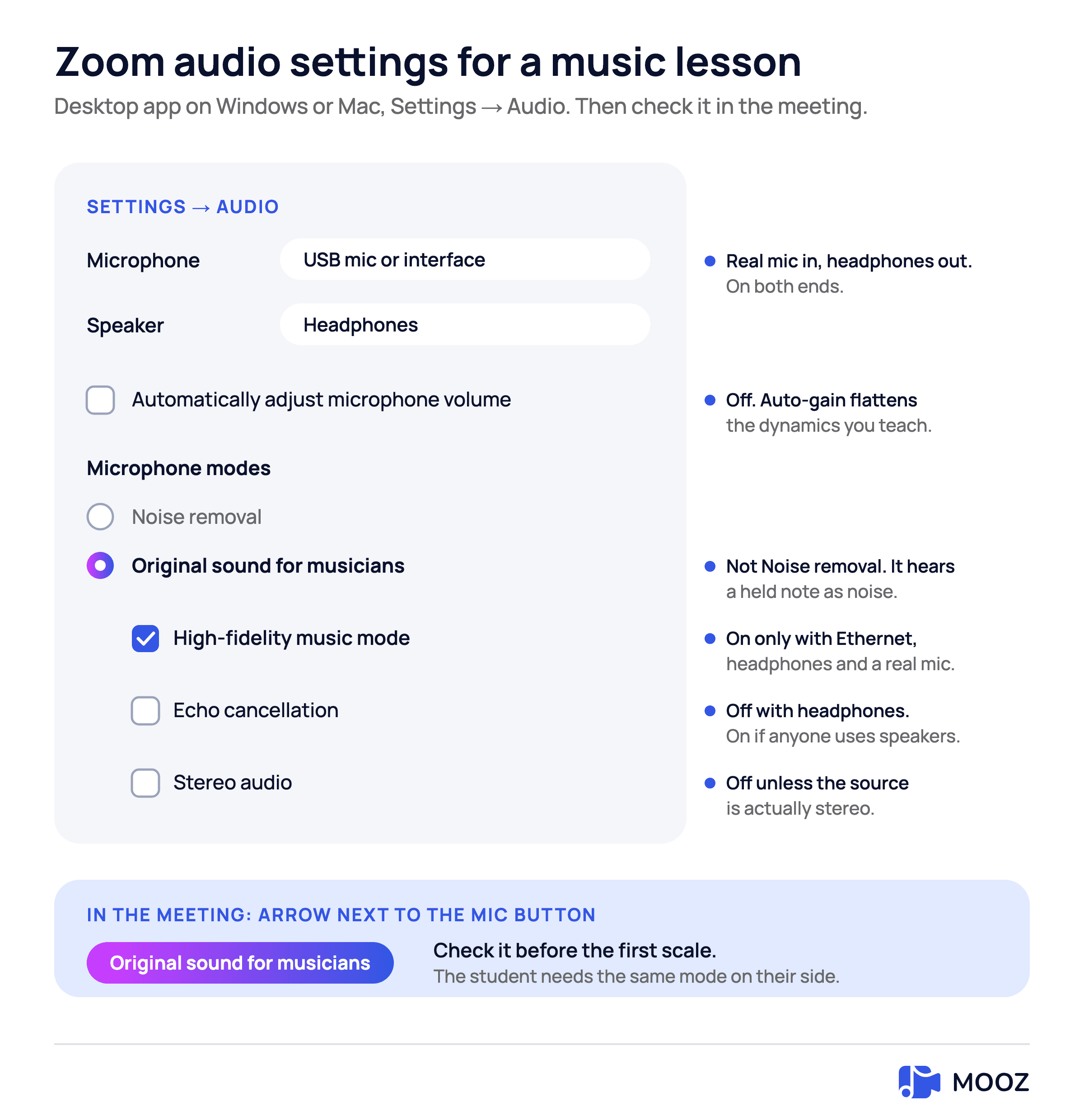
Every box on this panel, and the in-meeting check teachers skip
1. Choose the right input and output
- Microphone: your USB mic or interface, not the built-in mic.
- Speaker: your headphones, not the laptop speakers.
- Talk, then play one loud phrase. The level meter should react to the instrument, not just to your voice.
2. Turn off automatic gain
Uncheck Automatically adjust microphone volume. Auto-gain boosts quiet passages and turns down loud ones, so the student can't hear your dynamics while Zoom is moving the fader. Set the level so your loudest real phrase stays out of the red. If the meter maxes out, turn the gain down on the interface, not with a noise filter.
3. Original sound for musicians
Under Microphone modes, select Original sound for musicians. Don't use Noise removal (the default) or Personalized audio isolation. Both are designed to keep a voice and throw everything else away, and a held note is exactly what they throw away.
Once selected, Zoom keeps the mode for future meetings. Check it anyway in your first lesson: click the arrow next to the microphone button in the meeting window and make sure Original sound for musicians is selected. If the student plays or sings, they need the same mode on their side, because your setting doesn't change the audio they send.
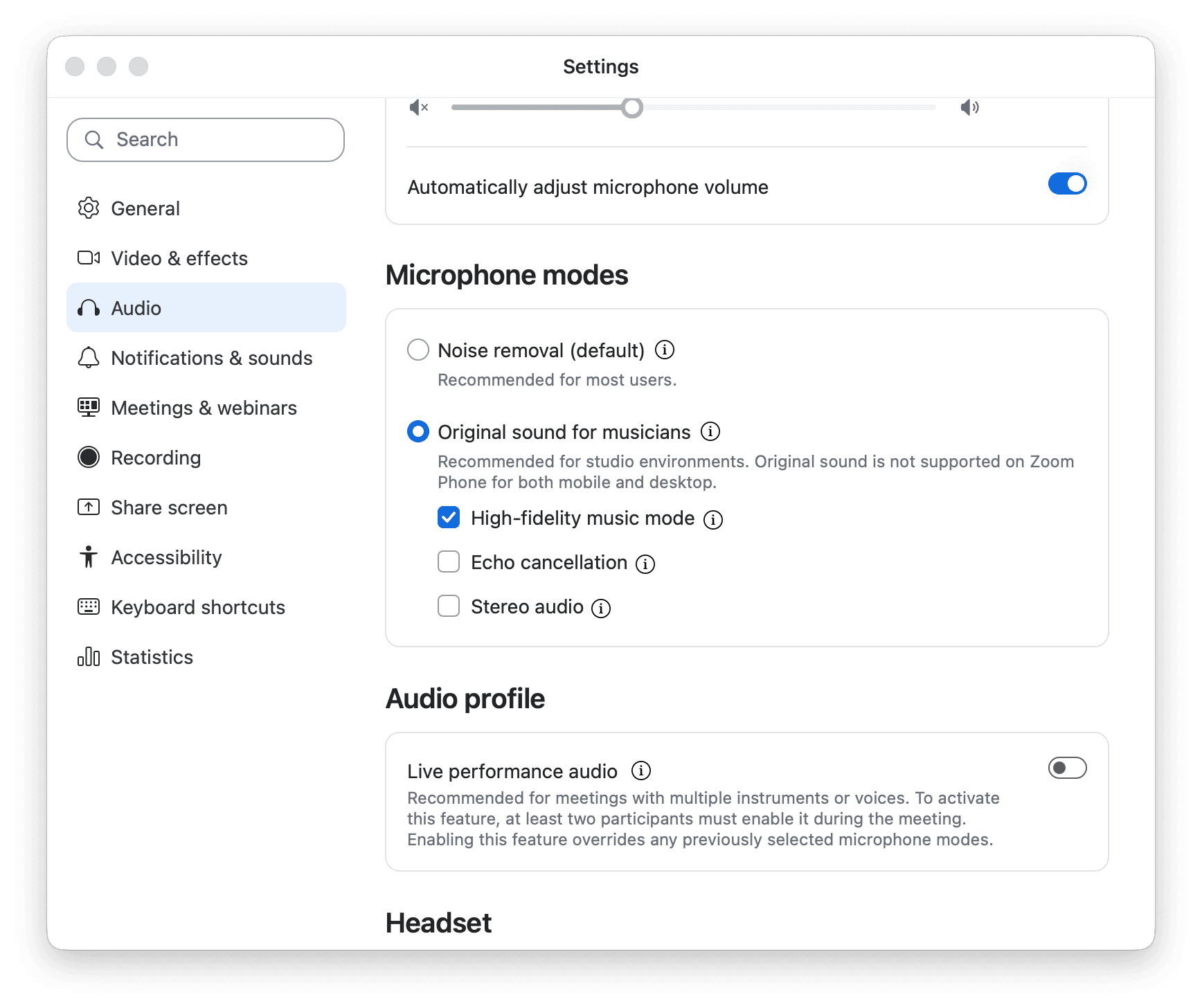
The real Audio tab. Original sound and high-fidelity are set, but the auto-volume toggle at the top is still on: switch that one off
4. High-fidelity music mode
With Original sound selected, tick High-fidelity music mode if you're on a wired connection. According to Zoom, this turns off echo cancellation and post-processing and raises audio quality to 48 kHz, 96 kbps mono or 192 kbps stereo. Zoom recommends a professional audio interface, a mic and headphones, plus a wired network connection. Berklee Online's Zoom guide adds that the mode increases CPU use and bandwidth and isn't recommended on wireless. Teachers see the same thing: the box is ticked and the Wi-Fi lesson stutters.
Don't enable it if either of you is on speakers. The mode turns echo cancellation off, and speakers without echo cancellation howl.
5. Echo cancellation: the box people get backwards
Zoom suggests turning echo cancellation off mainly when you're on headphones or playing an instrument, and high-fidelity mode turns it off for you. In practice:
- Both on headphones with high-fidelity on: leave echo cancellation off. The headphones are your isolation.
- Anyone on speakers: echo cancellation on, high-fidelity off. Feedback costs more than the extra bitrate.
- Ringing while wearing headphones: the headphones are leaking. Fix the fit before you turn the filter back on.
6. Stereo audio: usually off
Tick Stereo audio only if your mic or interface is actually stereo, or you're sending a backing track or a processed mix. A single vocal mic doesn't become stereo because the box is ticked, and stereo uses more CPU and bandwidth. Zoom recordings are generally saved in mono too. For an ordinary one-to-one lesson, leave it off.
All the settings in one pass
| Setting | For a music lesson |
|---|---|
| Microphone / Speaker | USB mic or interface in, headphones out. Both ends |
| Automatically adjust microphone volume | Off. Dynamics are part of the lesson |
| Microphone mode | Original sound for musicians, not Noise removal |
| In the meeting | Check the mode from the arrow next to the mic button before the first scale |
| High-fidelity music mode | On with Ethernet, headphones and a real mic. Off on Wi-Fi or with speakers |
| Echo cancellation | Off with headphones and high-fidelity. On if anyone uses speakers |
| Stereo audio | Off unless the source is stereo |
| Student's side | Same mode, same headphones. Your settings don't cover their mic |
During the lesson
- Join from the desktop app. The browser version doesn't offer Original sound.
- Confirm the mode from the arrow next to the mic button before the first scale.
- Keep the student's setup the same all month. Ask them to wear headphones and use the same mic every time. Switching from a phone speaker to a laptop mic mid-term sounds like a different instrument.
- Use Share Sound only for a backing track you're not playing along with. Sharing adds its own delay, so don't try to accompany the student live over it.
- Check the host's plan. On a free Zoom account, meetings end at 40 minutes, including one-to-one calls. A 60-minute lesson needs Pro, which costs $16.99 a month, or $14.16 a month billed annually. The time limit depends on whoever hosts the meeting.
- Record if your plan allows it. The student won't remember the bowing, but they'll have the file.
Is Zoom good for music lessons?
Zoom is fine for talking, setting homework and sending invoices. Once the settings above are on, it's still not good enough to teach tone. Original sound, high-fidelity mode and Live performance audio are as far as Zoom goes. They don't give you a shared metronome, a synced backing track, a hand camera or sheet music you can mark up. A normal call still adds enough delay that a live duet sounds late, and no checkbox in the standard settings fixes that. Zoom's Live performance audio aims to cut latency to about 30–50 ms, but it has higher requirements than the other audio settings.
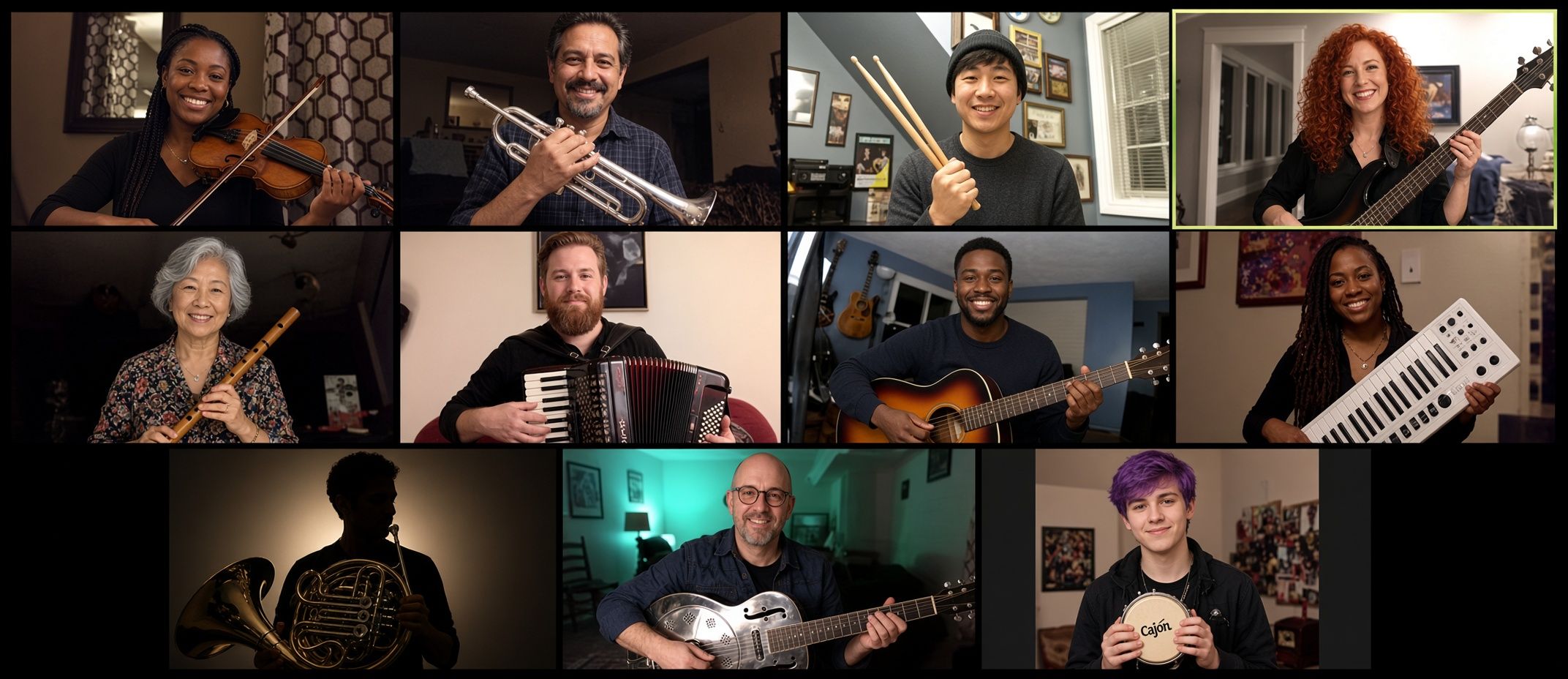
Zoom is built for this: a grid of faces where one person talks at a time. A lesson needs two people making sound at once
For a full product comparison, including where Zoom wins, see Zoom vs MOOZ. This page only covers the setup.
Where Zoom hits the ceiling
If you've done the checklist and the lesson still doesn't work, more menus won't help. These are the problems teachers run into once the settings are already correct:
| What you notice | What's going on | What you need |
|---|---|---|
| The note dies, then swells back | A gate is still treating the note as noise | A room that doesn't gate music |
| The duet is late, the click is late | Delay and no shared clock | A shared click or track instead of accompanying live |
| You can't see the hand | Your camera shows a face, not a fretboard | A second feed on the fretboard, bow or keys |
| You have four tabs open | No sheet music or metronome inside the call | Annotation and a click in the same window |
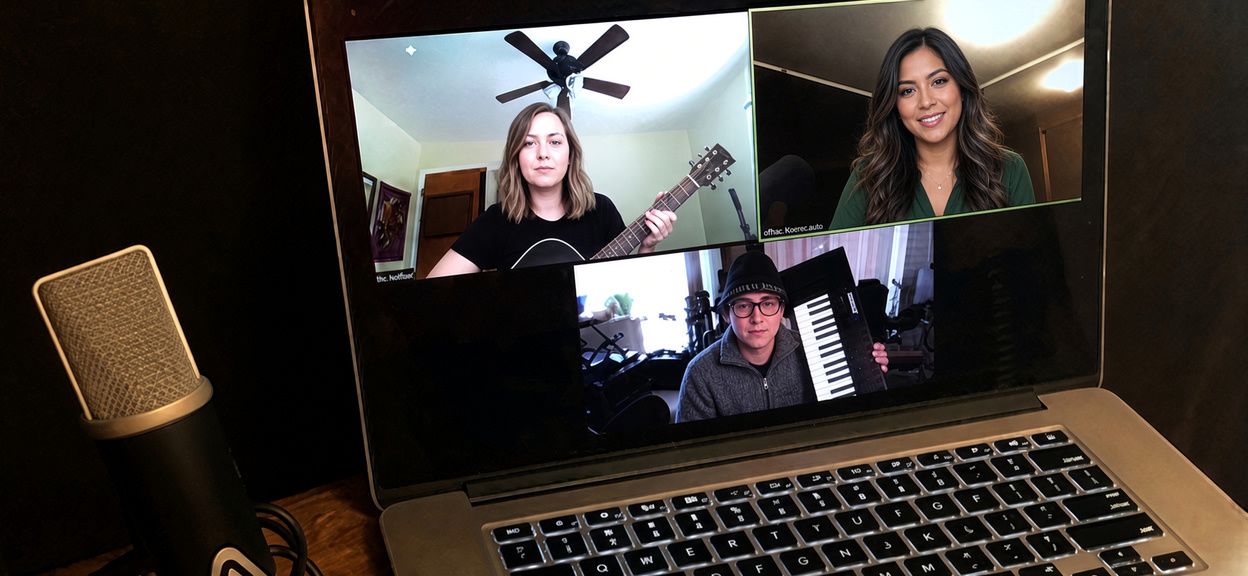
A guitar, a keyboard and a voice on one call. Past the settings, Zoom still gives each of them one camera and no shared click
When to switch
If the problem is the sound, switch apps, not teachers. Move the instrument lesson the week tone becomes the complaint.
- You teach voice, strings, piano, guitar or winds, and the student says "it sounds distant" even though Original sound is on.
- You need a click you both hear in time. A metronome on one person's phone isn't a shared clock.
- You need the hands in frame without changing the camera view.
- You want to mark up a PDF in the lesson instead of describing bar 12.
MOOZ is built for that: studio-grade, full-range audio, up to five cameras, a built-in metronome, virtual piano and audio player, sheet music annotation and lesson recording. Sync Mode puts you and the student on the same click, backing track or piano. It doesn't make latency disappear, because nothing can. It gives you both one reference to play against, which is the honest fix, not a faster Zoom.

Sync Mode in MOOZ: you and the student play against the same click, track or piano
Students never pay for MOOZ. Teachers in the US pay about $25–50 a month depending on the plan, prices vary by country, and there's a 14-day money-back guarantee. A profile in the MOOZ teacher directory comes with the subscription, so students can find you there too. If your problem is finding students rather than sound, read our comparison of the best platforms for teaching music online.
🎹🔁 Settings done and the tone still dies? Move just the playing: send the student a MOOZ link the day before, they install it for free, and the next lesson starts with the metronome, the sheet and the second camera already in the room. Download MOOZ →
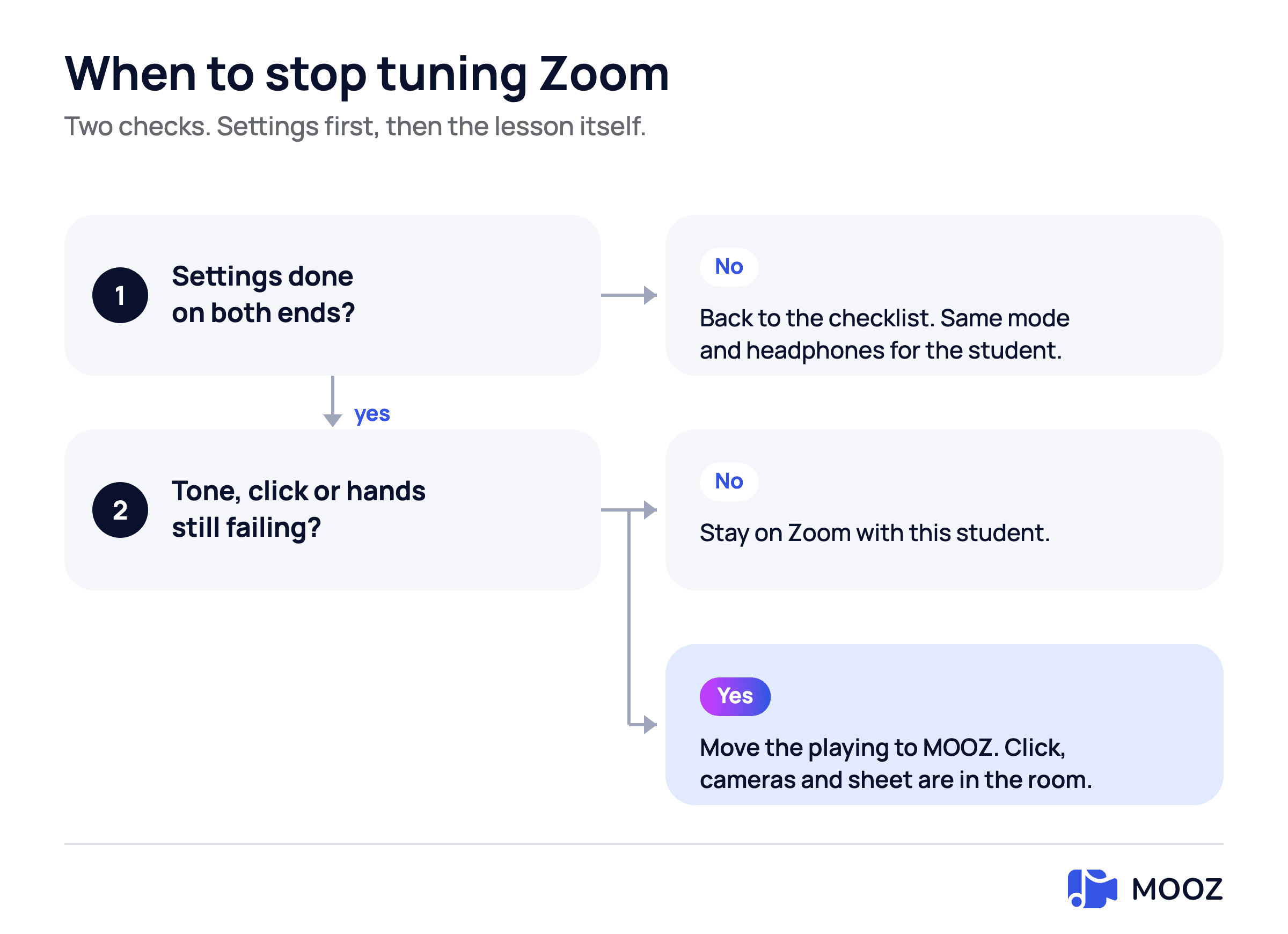
Fix the settings first. If the lesson still fails after that, it is the product, not a checkbox
A 10-minute setup to send your student
Paste this into a message. It's the whole how-to without the explanations.
- Install the Zoom desktop app. Don't join from the browser.
- Put your headphones on and leave your phone in another room.
- Settings → Audio: set the microphone to your real mic and the speaker to your headphones.
- Turn off "Automatically adjust microphone volume".
- Microphone mode: Original sound for musicians.
- If you're on Ethernet and headphones, turn on High-fidelity music mode. On Wi-Fi, leave it off.
- In the meeting, click the arrow next to the mic button and check that Original sound for musicians is selected.
- Play four bars. If the end of a note disappears, tell me. Don't try to fix it by moving closer to the laptop.
FAQ
What are the best Zoom settings for music lessons?
Use the desktop app with a real mic and headphones. Turn off automatic mic volume and select Original sound for musicians, then check it in the meeting too. Turn on high-fidelity music mode only over Ethernet with headphones, and leave stereo off unless the source is stereo. The student needs the same settings on their computer.
Where is Zoom Original sound?
On desktop, go to Settings → Audio → Microphone modes → Original sound for musicians. In a meeting, click the arrow next to the microphone button to see or change the mode. On iPhone and Android, turn it on in the app's settings first, then in the meeting.
Should I turn on high-fidelity music mode?
Yes, if you're both on headphones, you have a real mic and you're on a wired connection. No on Wi-Fi, no with speakers. Zoom runs this mode at 48 kHz, 96 kbps mono. It also turns off echo cancellation, which is why speakers howl with it on.
Is Zoom good for music lessons after these settings?
It's better, but it's still not built for music. Original sound stops the worst of the noise gating. It doesn't give you a shared click, a second camera or sheet music you can mark up, and it doesn't remove the delay. Keep Zoom for talking, and switch apps for teaching tone.
Does the student need the same settings?
Yes, if they play or sing. Your Original sound only affects what you send, and their noise removal still gates what they send. If one side is on a speech mode, the lesson suffers.
Why does the note still cut out?
There are three usual causes, in this order: the meeting isn't actually using Original sound, the student is still on Noise removal, or high-fidelity mode is on over Wi-Fi and the stream is dropping. If all three are fine and the end of the note still dies, you've hit Zoom's limit, and it's time to switch rooms.
Bottom line
Set Zoom up properly before you blame it: Original sound for musicians, automatic volume off, headphones on, the mode checked in the meeting and high-fidelity only on a wired connection. That's the best Zoom can do for a music lesson. Beyond that, there's no checkbox for a shared click, hands in frame or sheet music in the same window. Use Zoom to talk with the parent, and move the instrument lesson to a music room.
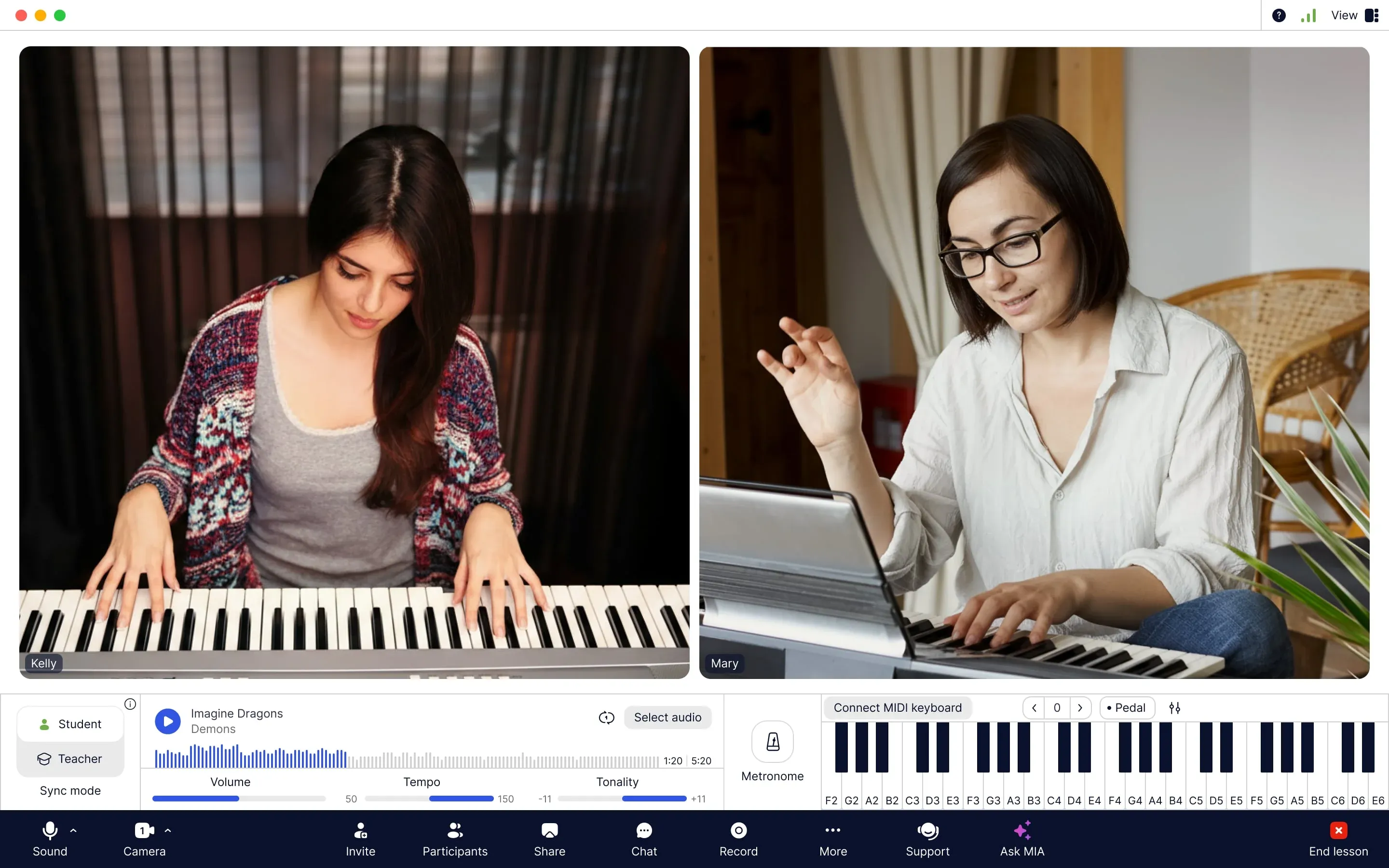
A piano lesson in MOOZ: both players on camera, a backing track with tempo and key, Sync Mode, the metronome and a virtual keyboard in one window
Sources
Checked on 6 November 2026.
| Source | What it supports |
|---|---|
| Zoom: setting up professional audio | High-fidelity music mode at 48 kHz, 96 kbps mono or 192 kbps stereo, Live performance audio at about 30–50 ms |
| Zoom: pricing | 40-minute limit on the free plan, Pro at $16.99 or $14.16 a month |
| Zoom Community: limit for 1:1 meetings | The 40-minute limit also covers one-to-one meetings on free accounts |
Related Articles
Music Teachers and Time Management: Burnout Cancelled
Drowning in lesson plans and admin? This guide helps music teachers master their schedule.
Music Teacher Marketing Guide: From Job Search to Fully-Booked Studio
Ultimate guide with Instagram/TikTok strategies, copy-paste DM templates, and music teaching tools to find students directly.
Your Student Wants to Quit Music: What to Do
A music teacher's survival guide: learn how to deal with student dropouts.